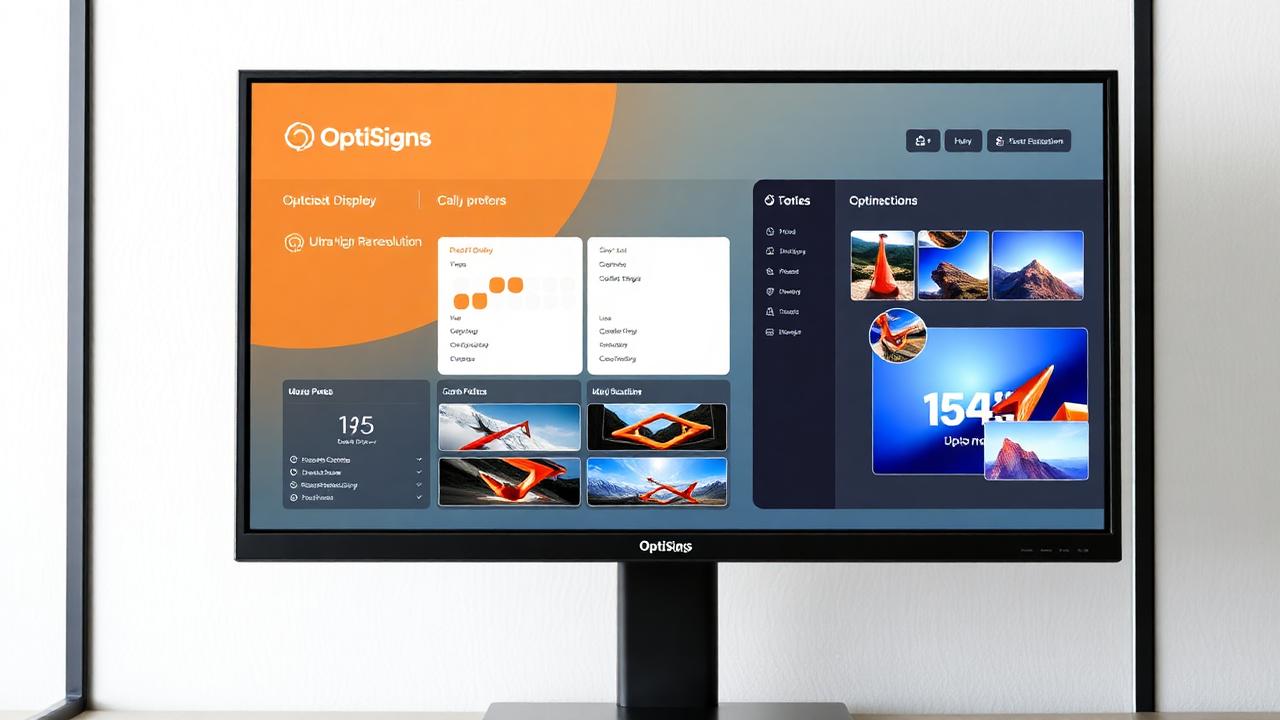
OptiSigns Review 2026
A comprehensive guide to OptiSigns digital signage software, including how to login, setup, use the platform, and compare with free alternatives.
Quick Summary
OptiSigns has carved out a niche as an affordable digital signage solution, particularly appealing to businesses looking for a no-frills approach. They also sell their own hardware device (OptiStick), which simplifies setup for non-technical users.
Starting Price
$10/mo
per screen
Free Trial
14 Days
No free tier
Best For
SMBs
Simple needs
How to Login to OptiSigns
Accessing your OptiSigns dashboard is straightforward. Here's how to get started:
Navigate to the OptiSigns Portal
Open your web browser and go to app.optisigns.com. This is the main login page for all OptiSigns users.
Enter Your Email and Password
Type the email address you used to create your account and your password. Click "Sign In" to proceed.
Access Your Dashboard
Once authenticated, you'll be taken directly to your OptiSigns dashboard where you can manage all your screens and content.
Login Problems? Click "Forgot Password" to reset your credentials. If you're still having issues, contact OptiSigns support via email.
How to Set Up OptiSigns
Creating Your Account
Start Your Free Trial
Visit optisigns.com and click "Start Free Trial". Enter your business email, name, and create a password.
Verify Your Email
Check your inbox for a verification email from OptiSigns and click the link to confirm your account.
Complete Your Profile
Add your company information, timezone, and preferred settings during the onboarding process.
Setting Up Your First Screen
Choose Your Device
OptiSigns works with Fire TV Stick, Android TV, Windows PCs, Chrome OS, and their OptiStick device. Pick what works for you.
Download the OptiSigns App
On your chosen device, download the OptiSigns app from the app store (Amazon App Store, Google Play, or Windows Store).
Get Your Pairing Code
Launch the app on your device. A 6-character pairing code will appear on the screen.
Add Screen in Dashboard
In your OptiSigns dashboard, go to Screens → Add New Screen. Enter the pairing code from your device.
Assign Content
Select your screen and assign a playlist or content. It will start playing immediately.
How to Use OptiSigns
Uploading Content
- Click "Assets" in the navigation menu
- Drag and drop files or click "Upload"
- Supports JPG, PNG, MP4, PDF files
- Add web URLs and embed content
- Use Canva, Google Slides integration
Creating Playlists
- Navigate to "Playlists" section
- Click "Create New Playlist"
- Add assets from your library
- Set duration for each item
- Drag to reorder content
Using OptiSigns Apps
OptiSigns has 60+ built-in apps to enhance your content:
🌤️ Weather
Display local weather with customizable layouts.
📰 News & RSS
Show live news feeds from any RSS source.
📱 Social Media
Display Instagram, Twitter, and Facebook feeds.
🗓️ Google Calendar
Show meeting schedules and events.
⏰ Clock & Timer
Display time, countdowns, and timers.
🎨 Canva
Direct integration with Canva designs.
Scheduling Content
OptiSigns offers basic scheduling features:
- 1
Basic Schedule
Set start and end dates for content to play during specific periods.
- 2
Time-Based Playback
Configure content to play only during certain hours of the day.
- 3
Default Content
Set fallback content that plays when scheduled content isn't active.
OptiSigns Hardware: OptiStick
What is OptiStick?
OptiStick is OptiSigns' own media player device, designed specifically for their platform. It's a plug-and-play solution that eliminates setup complexity.
- Pre-configured with OptiSigns app
- Supports 4K resolution
- WiFi and Ethernet connectivity
- Compact form factor
OptiStick Price
~$89
One-time purchase
+ $10/month subscription
Fire TV Stick
Budget-friendly, ~$30-50
Android TV
Smart TVs with Android
Windows PC
Desktop or mini PC
Chrome OS
Chromebox or Chromebit
OptiStick
Pre-configured, ~$89
BrightSign
Commercial players
Pros & Cons
Pros
- Very affordable pricing at $10/screen/month
- Sells own hardware devices (OptiStick)
- Good Fire TV and Android support
- Simple, straightforward interface
- 60+ app integrations available
Cons
- No free tier (only 14-day trial)
- Interface can feel basic compared to competitors
- Limited advanced scheduling options
- Support primarily via email
- Fewer template options than competitors
OptiSigns Pricing in 2026
OptiSigns keeps pricing simple with a straightforward per-screen model:
| Plan | Price | Features |
|---|---|---|
| Standard | $10/screen/month | All features included |
| Annual | $8.33/screen/month | Billed annually, save 17% |
| Hardware | ~$89 one-time | OptiStick player device |
💡 Cost Comparison
For 10 screens on OptiSigns: $100/month ($1,200/year), plus ~$890 for hardware.
With PosterBooking, the same 10 screens cost $0/month and works with any existing TV or Fire Stick.
Troubleshooting Common Issues
If the pairing code doesn't work:
- Make sure you're entering the code exactly as shown
- Codes expire after 15 minutes — restart the app for a new code
- Check your internet connection on the device
- Try restarting the device and getting a fresh code
If content isn't showing on your screen:
- Verify content is assigned to the correct screen
- Check that the playlist has been published
- Ensure the device has an active internet connection
- Try force-refreshing the screen from the dashboard
- Make sure media files aren't corrupted
Common causes for offline status:
- Check WiFi or Ethernet connection on the device
- Restart the player device
- Verify firewall isn't blocking OptiSigns servers
- Power cycle the device (unplug, wait 30 seconds, replug)
For smooth video playback:
- Use MP4 format with H.264 codec
- Keep bitrate reasonable (under 20Mbps)
- Ensure strong WiFi signal or use Ethernet
- Lower resolution if device struggles (1080p instead of 4K)
- Use Fire TV 4K or better hardware for smooth playback
Key Features
Content Types
Images, videos, web pages, social feeds
Hardware Options
OptiStick, Fire TV, Android, Windows
Scheduling
Basic scheduling and playlist management
Templates
Pre-built templates for common use cases
Integrations
60+ apps including Google Slides, Canva
Management
Cloud-based dashboard for remote control
Frequently Asked Questions
No, OptiSigns does not offer a free tier. They provide a 14-day free trial, but after that you'll need to pay $10/screen/month. For a truly free option, try PosterBooking with 10 screen licences free for 3 months.
Yes! OptiSigns has full Fire TV Stick support. Download the OptiSigns app from the Amazon App Store and pair it with your account using the on-screen code.
OptiStick at ~$89 is convenient for quick setup, but a Fire TV Stick ($30-50) works just as well and is more versatile. Choose OptiStick if you want hassle-free setup; choose Fire TV if you want to save money.
Log into your dashboard, go to Account Settings → Billing, and click "Cancel Subscription." You'll keep access until your current billing period ends.
PosterBooking is the best free alternative with 10 screen licences free for 3 months and AI-powered menu generation. Yodeck offers a 1-screen free tier if you only need a single display.
The Bottom Line
OptiSigns is a competent digital signage solution that keeps things simple and affordable. At $10/screen/month, it's more accessible than enterprise solutions like ScreenCloud.
The main drawback is the lack of a free tier and the relatively basic feature set. While it handles the essentials well, businesses looking for advanced scheduling, analytics, or AI-powered features may find it limiting.
Our recommendation: OptiSigns is suitable for businesses that want simplicity and don't mind paying per screen. However, if budget is a concern or you need more than basic features, PosterBooking's free tier offers more value.